
Track Every Package, Client, And Payment In One Place With The Packages Report. Clear, Filterable, And Always Up To Date
Want a full breakdown of your active packages? The Packages Report has you covered. By utilizing this report, you'll also be able to recognize your earned and unearned revenue for a specific period of time.
Step 1: Open the Report
➡️ Go to your reports section and select Packages Report. Use the date filter (e.g. “This Month”) to set the time frame you want to view.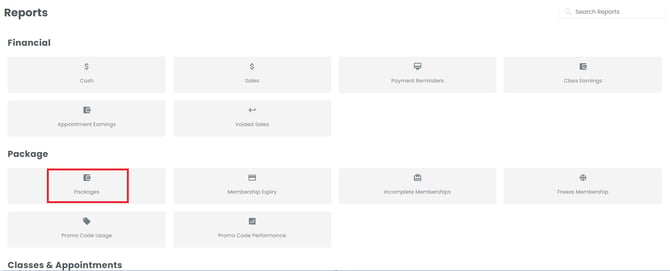
Step 2: Choose Your Report View
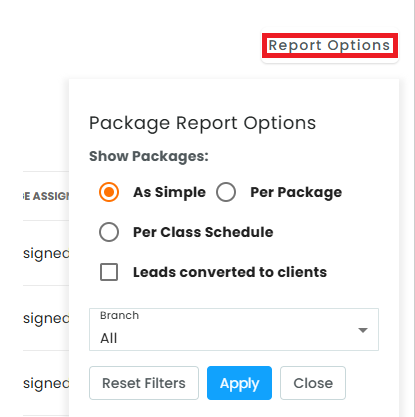
Click Report Options to filter the report based on how you want to see your data:
- Default View – Displays all clients and all packages at once
- Per Package – Shows each package and who purchased it, along with how many people bought it
- Per Class Schedule – Shows each class and which clients have purchased packages linked to it
- Per Branch – Filters results by branch
Step 3: Review Client & Package Details
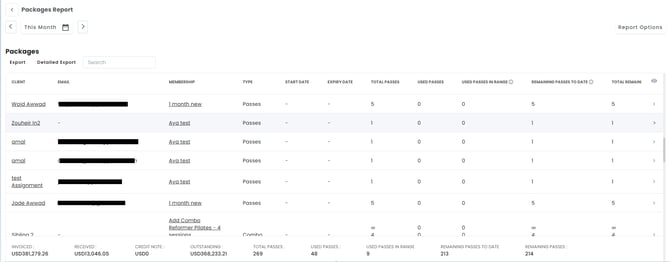
Once your view is set, the main table displays the foundational details for every entry:
- Client & Email: Contact information for the package holder.
- Membership: The specific name of the package purchased.
- Type: Identifies if the package consists of standard Passes, a Combo, or a Pre-selected package.
- Start & Expiry Date: The active date range for the package.
Step 4: Track Passes vs. Timeframes
Understanding your pass columns ensures you know exactly how clients are utilizing their active packages:
- Total Passes – The total number of passes included in the package
- Used Passes – How many passes have been used overall, regardless of the selected time frame
- Used Passes in Range – How many passes were used within the selected time frame
- Remaining Passes to Date – How many passes remain within the selected time frame
- Total Remaining Passes – The total passes still remaining on the package, regardless of date
Example:
Using row 1 from the report — a Reformer/Tower/Chair – 12 classes package:
- Total Passes: 12 — the full package size
- Used Passes: 7 — passes used across the package's entire lifetime
- Used Passes in Range: 1 — 1 pass was used within the selected date range
- Remaining Passes to Date: 5 — passes still available within the selected range
- Total Remaining Passes: 5 — passes left on the package overall (12 − 7), regardless of date
Step 5: Review Payment & Status Details
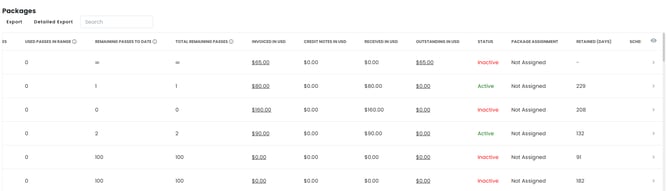
Scroll right to see the financial and status breakdown:
- Invoiced – Total amount invoiced for the package
- Credit Notes – Shows if the package was credit noted
- Received – Amount paid
- Outstanding – Amount still unpaid
- Status – Whether the package is Active or Inactive
- Package Assignment – Whether the client's package is linked to a class within the selected time period.
- Retained (Days) – How many days the client has been retained
- Schedules – For Preselected packages only, showing how many schedules the client is assigned to using this package
With the Packages Report, you get a complete, real-time view of every client’s packages — usage, payments, and status — all in one report.