
Here's how to do it:
Step 1: Go to Company Settings
Head to your dashboard and click on Company Settings from the left-side menu.
Step 2: Navigate to the Staff Section
Inside Company Settings, select the Staff tab.
Step 3: Add a New Staff Member
Click the Add button to begin entering a new team member.
Step 4: Fill In Staff Details
Complete the following fields:
- Email (required)
- Name (required)
- Phone Number
- Gender
- Staff Card ID (optional)
- Notes (optional)
You’ll also find a More Info section where you can optionally add:
- Passport Details
- Visa Details
Step 5: Set Their Role & Access
- Choose Access Level (Role 1 to 5 – explained below)
- Select Gender
- Mark if the person is an Instructor or not
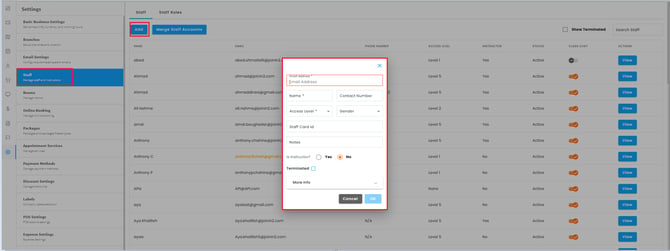
Once done, hit OK!
🚨 Important:
The staff member will receive an email to confirm their account.
If they don't see it in their Inbox, ask them to check Spam or Junk folders.
Staff Email & Notification Preferences
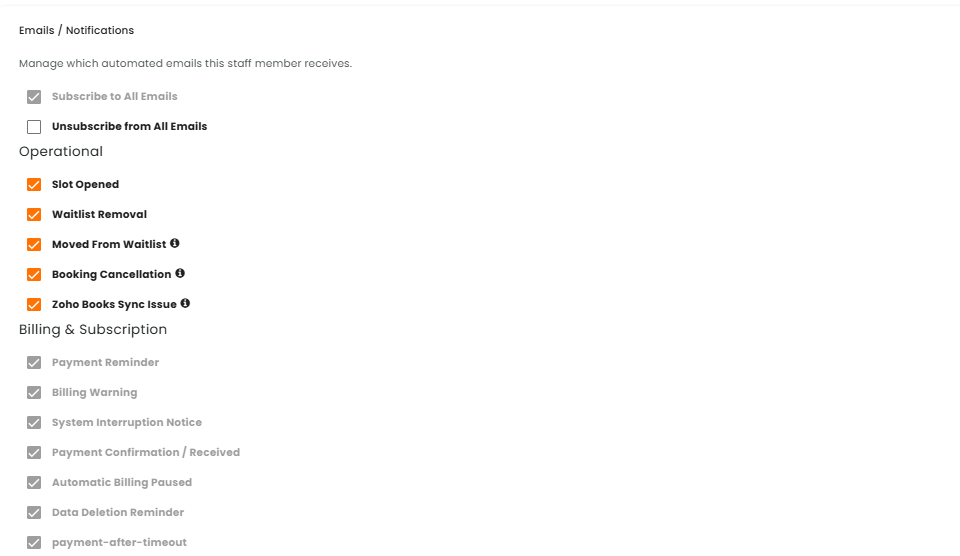
Manage which automated emails each staff member receives, directly from their profile.
➡️ Navigation: Staff → Staff Details → Emails/Notifications
What you can do:
- Enable/disable individual Operational email notifications per staff member (e.g. Slot Opened, Waitlist Removal, Moved From Waitlist, Booking Cancellation, Zoho Books Sync Issue)
- Use Subscribe to All Emails / Unsubscribe from All Emails to toggle optional emails in bulk
- Changes save automatically — no Save button needed
Billing & Subscription emails (Payment Reminder, Billing Warning, System Interruption Notice, Payment Confirmation/Received, Automatic Billing Paused, Data Deletion Reminder, payment-after-timeout) are critical and always enabled — they cannot be turned off.
🔐 Permission required: Access to this section is controlled by the Manage Staff Email & Notification Preferences security permission, enabled by default for Levels 4 & 5.
Instructor Chat Permissions
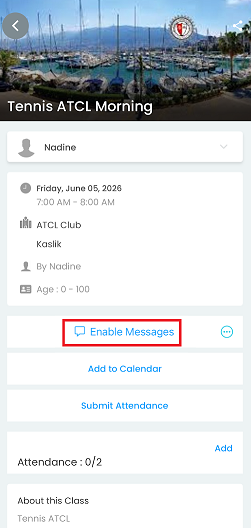
You can now manage instructor chat access directly from the Staff page.
- A new Class Chat toggle is available for each instructor
- Use it to enable or disable chat access for Classes and Private Training
Changes take effect directly from the Staff page — no extra steps needed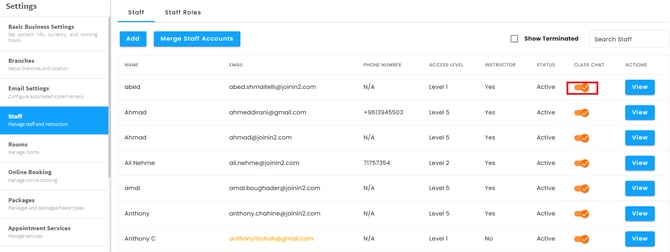
Managing Staff Roles & Permissions
To control who can access what:
- Go to Staff Roles
- Choose a Role Level (1 to 5)
- Use the toggles to turn ON the modules or sections this role should have access to
This helps you:
- Limit financial data access to managers only
- Give trainers access to class schedules
- Prevent front desk staff from editing client data (if needed)
Tip:
All logged-in staff will have access based on the role permissions you assign here—customize it to suit your team structure.
✅ You’re all set!
Want help deciding which permissions fit each staff level? We can guide you—just let us know the staff’s duties or title and we’ll suggest a setup!