
Go to: Company Settings > Email Settings from the left-side menu
Categories You'll Find Inside:
Each category includes multiple email templates. You can turn each email ON or OFF as needed and edit their content. Here’s a full breakdown:
Activities
All automated emails related to classes, appointments, waitlists, and feedback.
- Activity Late Cancellation Email
Sent when a client cancels a class late. You can inform them they were charged—or not—depending on your policy. - Added To Class Email
Confirmation email when a client is added to a class. Includes {Title}, {Trainers}, {Business Name}, {Date}, and {From Time}. - Added From Waitlist Email
When a client is bumped up from the waitlist, this email invites them to confirm their spot. - Spot Opened Email
Triggered when auto movement is OFF and a client cancels from the app, opening a spot. Clients on the waitlist are notified that a spot became available. - Activity Cancellation Email
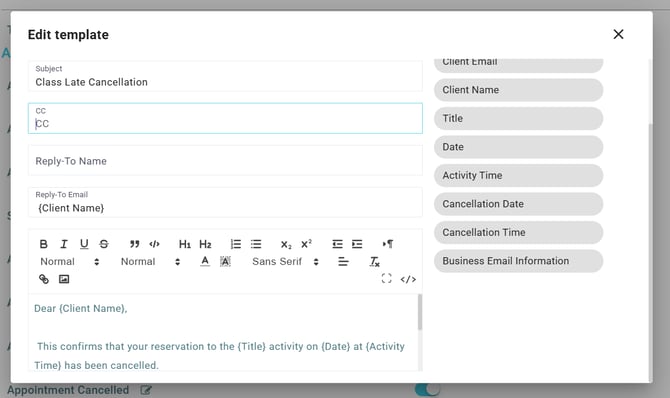
Sent when a client cancels early from their end. Example message:
“This confirms that your reservation to the {Activity} on {Date} at {Activity Time} has been cancelled. Since the cancellation occurred within our policy, you have not been charged.” - Activity Teacher Changed Email
Notifies clients that a different trainer will be subbing:
{New Teacher} will be teaching {Title} instead of {Old Teacher} at {Activity Time} on {Date}. - Activity Cancelled Email
Sent when the studio cancels a class:
“The class you are enrolled in, '{Title}' at {Activity Time} on {Date}, has been cancelled by the studio.” - Appointment Cancelled Email
For canceled appointments (like PT sessions), not regular classes. Informs clients their 1-on-1 was cancelled. - Waitlist Client Email
Different from the “Spot Opened” email—this one is sent when a client cancels from the class, and a waitlisted client is added. - Ratings & Reviews Email
After class, clients are invited to rate and review both the class and trainer. - Auto Removed From Waitlist Email
“Your chance to join {Title} has timed out.”
🔧 You set the waitlist timeout via:
Company Settings > Online Booking Settings > Turn OFF Automated Movement > Set timeout in minutes
Staff
- In2 Booking Platform Credentials Email
Sends login credentials to staff:
“Here is your required login info:
Username: {Email}
Password: {Password}”
🔁 Sent via:
Staff > View > Reset Password & Send Email
Online Booking
- Event Booking Email
Sent when a client books online:
“We’re excited you’ll be joining {Title} with {Trainer Name} on {Activity Date} at {Location}!” - Client Payment Email (Payment Receipt Confirmation)
“Thank you for settling your balance of {Payment Amount} via {Payment Method}, on {Transaction Date} for {Payment Description}. Your receipt is attached.” - Private Session Booking Confirmation
Confirms private appointment booked from the app. - Package Purchase Confirmation Email
Includes full receipt and invoice when a package is bought online or from the portal (when you purchase a client a package and click on send email to client) - Field/Court Booking Confirmation Email
Confirms field or court bookings.
Booking
- Activity Booking Receipt Email
Confirmation for classes booked from the app. - Waitlist Activity Booking Receipt Email
Sent when a client (or staff) adds someone to a waitlist.
Package Expiry
Keep clients informed and encourage renewals:
- One Week Before Package Expiry Email
“Your membership {Membership Name} will expire in one week on {Expiry Date}.” - Three Days Before Package Expiry Email
“Your membership {Membership Name} will expire in 3 days on {Expiry Date}.” - Half Way Passes Memberships Email
“You’ve used half of your passes from {Membership Name}. You have {bean.passes} left!” - Package Totally Consumed Email
“It’s time to renew! Your package {Package Name}, bought on {Date}, has been fully used.” - Reservation End Email
For field/court bookings:
“Thank you for booking with us! Your reservation for {Title} on {Date}, from {From Time} to {To Time}, has ended.” - Membership Expiry Alert Email
Sent when any type of membership reaches its end date.
Clients
- Balance Payment Request Email
“You have an outstanding balance of {Balance Formatted}. Click the link below to settle your balance.”
🔔 Triggered by clicking the bell icon next to client balance > send or copy payment link. - New Client Welcome Email
Auto-sent to new clients after creation. - Client Birthday Email
Auto-sent on birthday (if DOB is saved). Use it to say happy birthday or invite them for a free session. - Package Purchase Confirmation Email
Sent when the client purchases a package (from staff portal when you click on send receipt). Includes invoice and receipt. - Client Private Session Checkout Email
“You completed your {Service Name} session with {Trainer Name} on {Date and Time}.” - Client Level Change Email
Sent when you update a client’s level (e.g., Beginner → Intermediate).
Update via:
Client Profile > Edit > Linked Level (right side) > Save - Receipt Email
Send any receipt directly:
Client > Balance > View Summary > Scroll to Receipts > Click > Tick "Send Email" > Confirm
Example template:
“We’re thrilled to confirm your payment. Please find your receipt attached as a PDF.” - Client Anniversary Email
Automatically sent after a full year of being a member. A great chance to say thanks or offer a loyalty reward.
Signup Triggers
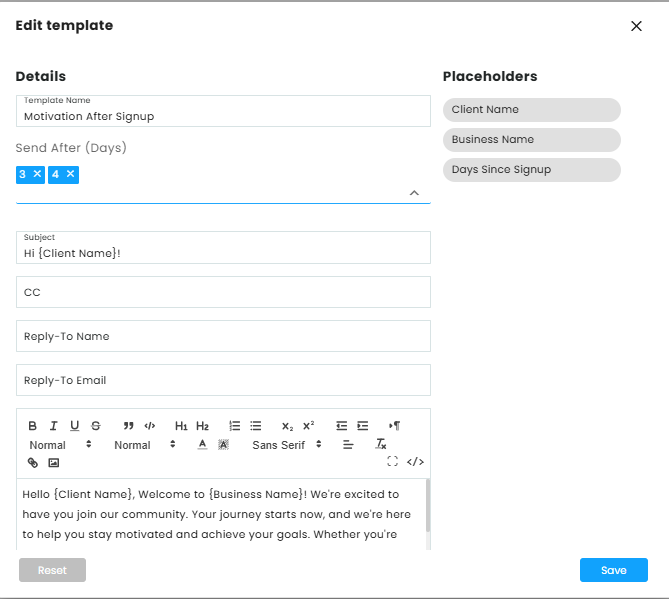
- Motivation After Signup Email
"Welcome to {BusinessName}! 🎉 Your journey starts now — book your next session and let's achieve your goals together."
🔔 Auto-sent after client signup, once the configured delay is reached. Default: 1 day after signup. - Feedback After Signup Email
"Thank you for joining {BusinessName}! We'd love to hear about your experience so far — please share your feedback at {BusinessEmail}."
🔔 Auto-sent after client signup, once the configured delay is reached. Default: 7 days after signup. - Refer a Friend Email
"Loving your experience at {BusinessName}? Invite your friends and family to join and enjoy it together!"
🔔 Auto-sent after client signup, once the configured delay is reached. Default: 14 days after signup.
Note that the "Send After (Days)" can be customized
📝 Pro Tip:
All templates can be edited. Customize the tone, add your policies, and keep it in sync with your brand!
Need help rewording any email template for clarity or impact? I’ve got you covered. Just send me the one you want to revise