
(Note: This does not include classes)
Step 1: Create a Service Group
Company setting > Appointment Services
Before adding individual services, start by creating a Service Group:
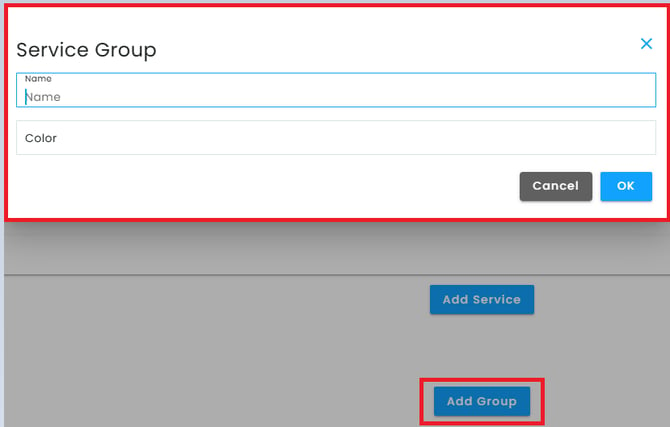
- Click on "Add Group"
- Enter the group name (e.g., Private Sessions)
- Pick a color to help visually organize services in the schedule
Step 2: Add Services to the Group
Once your group is created, you can add services under it. For example, under Private Sessions, you might include:
- One-on-One PT Session
- Two-on-One Session
- Group PT
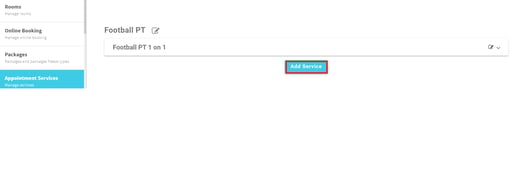
To add a service:
- Click "Add Service"
- Fill out the required fields (★ mandatory fields, including image):
- Image ★ (This will reflect in the app)
- Service Name ★
- Duration ★
- Category
- Rooms where the service will take place
- Select Levels (who can book it)
- Capacity
- Description
- Image ★ (This will reflect in the app)
- Enable Single Session (if applicable) to:
- Set a price
- Add a cancellation fee
- Set a price
- Optionally, disable the service online if you don’t want clients to see or book it through the app
- Click "OK" to save the service
Step 3: Allocate Packages & Assign Staff
Once the service is created:
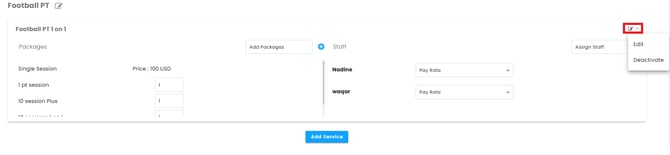
- Click directly on the service name (not the pencil icon)
- Go to "Add Packages" and select the packages that can be used for this service
- Click "Assign Staff" to choose who can deliver this service (you can assign more than one staff member)
Ongoing Management
- You can edit, deactivate, or reassign services at any time
- To keep your view clean, keep "Hide Deactivated" checked (uncheck it if you want to view deactivated services too)
MANAGE YOUR ROOMS AND ALLOCATE THEM IN THE APPOINTMENT SERVICES
How to Add a Room:
- Click “Add”
- Enter a room description (e.g., Studio A, Court 2)
- Select a category – such as Basketball, Group PT, etc.
- Set the PT Capacity – this defines how many personal training sessions can be held in the room at the same time
- (Optional) Add a Price List – if you plan to rent out this room, you can set pricing based on specific time slots (e.g., per hour or per session)
Once everything is set, click “OK” to save your new room.
You can come back anytime to edit, remove, or search for specific rooms as your operations grow or change.
After creating the rooms
Go to Appointment Services → Appointment Space Management
Booking Rule
Controls how clients are distributed across rooms when a booking is made.
- Prioritize Client Experience — Assigns clients to the emptiest available room, giving each client a more private and comfortable setting
- Prioritize Space Capacity — Fills up one room before moving to the next, maximizing use of each space
Room Selection Rule
Controls which room gets picked first.
- Select Rooms based on Capacity — Rooms with a higher PT capacity are preferred and filled first
- Select Rooms based on Priority — Rooms are selected according to the manual priority order you set in the Rooms Configuration below
Rooms Configuration
This is where you map each room to its relevant services.
- Each room has a priority number (1 = highest priority) — you can drag rows to reorder them
- For each row:
- Select a Room from the dropdown
- Select Services — assign all services that take place in that room
- The PT Capacity shows how many clients the room can hold at once
- The same service can be assigned to multiple rooms — the system will use the Booking Rule and Room Selection Rule to decide which room to use
- To remove a room from the list, click the red trash icon on the right
Unassigned Services
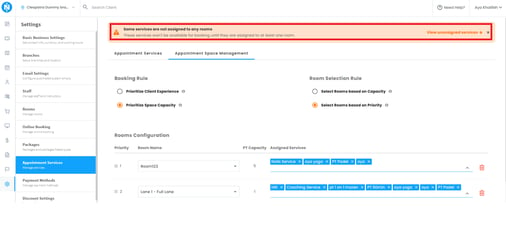
What it does: Flags appointment services that aren't assigned to any room, since these can't be booked by clients.
How it works:
- A warning banner appears if any services are unassigned, with a link to "View unassigned services."
- The dedicated page lists each service (name, duration, category, status) with an Assign Room action.
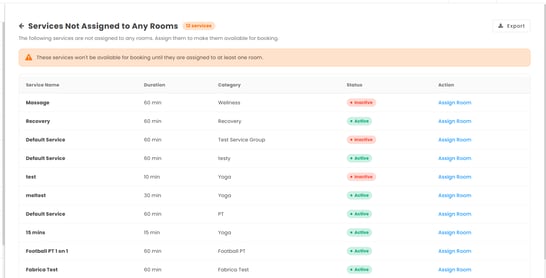
- Click Assign Room, pick a room from the dropdown, and the service becomes bookable right away.
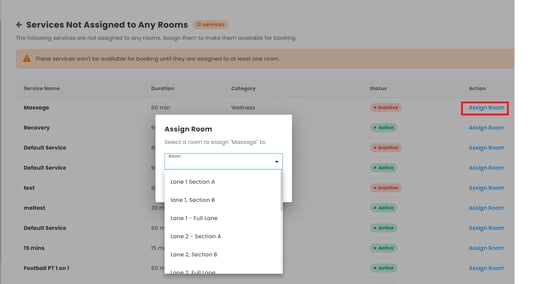
Why it matters: Unassigned services won't show up for booking — this makes it easy to find and fix them fast.
Let us know if you'd like help setting up your first services or organizing your groups! 😊