It’s divided into two main parts:
1️⃣ Staff List – Where you add and manage individual team members
2️⃣ Staff Roles – Where you define what each access level can view or do
1. Staff
In this section, you’ll see a full list of your staff members along with key information like:
- Name
- Phone Number
- Access Level
- Instructor Status
- Active/Inactive Status
- Actions (View, Edit, etc.)
How to Add a Staff Member:
Click on "Add" and fill out the required information:
- Email Address (mandatory)
- Name (mandatory)
- Contact Number
- Access Level (mandatory) – Determines what the staff member can access in the system
- Gender
- Staff Card ID
- Notes
- Is Instructor? – Choose Yes or No
Optional: You can also fill in additional details such as:
- Passport Number & Expiry Date
- Visa Details & Expiry Date
Click "OK" to save the staff member's profile.
Managing Existing Staff:
- Click "View" next to any staff member to see or edit their details.
- From there, you can:
- Assign schedules and availability
- Add their pay rates
- Reset their password and send credentials via email if needed
- Terminate staff if they’re no longer active
- Delete the user (⚠️ Not recommended if the staff member has history in the system)
2. Define Staff Roles and Permissions
In this section, you can customize what each access level is allowed to do within the system. For example:
- Level 5 (Owner) – Has full access to all features
- Levels 1–4 – Have more limited access, depending on the assigned role (e.g., receptionist, trainer, manager, etc.)
We’ve pre-set default permissions based on industry best practices, but you’re welcome to adjust them to suit your business needs. Just be sure to save your changes once you're done.
🔒 Staff Roles Page Layout
To make things easier, the Staff Roles page is organized into clear sections that reflect the different areas of the system:
- Dashboard
- Activities
- Private Sessions
- Fields & Rooms
- Clients
- POS (Point of Sale)
- Reports
- Company Settings
- Gym
- Mobile App
- Expenses
- Suppliers
- Payroll
💡 Example: Customizing Client Permissions
Let’s say you want to allow only certain staff members to issue refunds to clients.
In the Clients section, you'll find the "Refund Payment" permission. You can enable or disable this feature for specific access levels—giving you full control over who can perform sensitive actions.
Let us know if you’d like help configuring specific roles! 😊
✅If you’d like a visual walkthrough, check out this YouTube video
Instructor Chat Permissions
You can now manage instructor chat access directly from the Staff page.
- A new Class Chat toggle is available for each instructor
- Use it to enable or disable chat access for Classes and Private Training
Changes take effect directly from the Staff page — no extra steps needed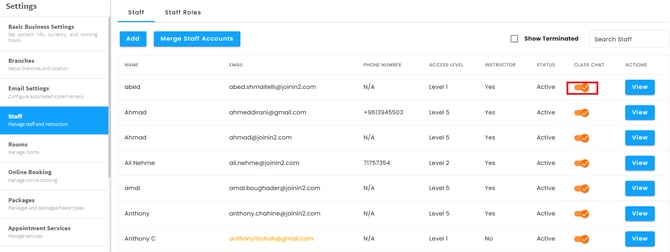
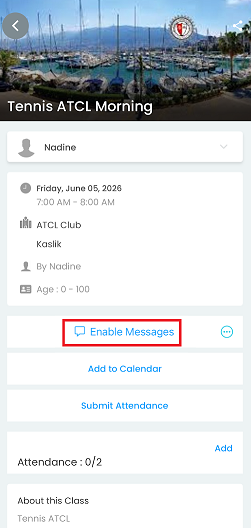
The Instructor can start a conversation with all the class attendees when class chat is enabled