
You can fully control how clients book classes, join waitlists, get notified, and more. To access this section:
📍Go to: Company Settings > Online Booking > Additional Online Booking Settings
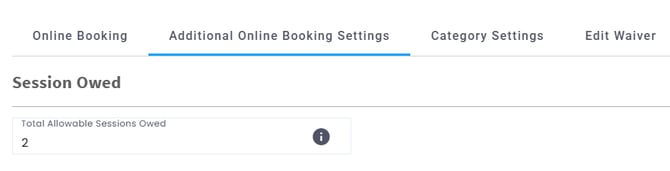
Sessions Owed Limit
- What It Does: Set how many sessions a client can owe while still being able to book online.
- Recommendation: Set it to a max of 2 to avoid a buildup of unpaid sessions.
- ✅ Note: This restriction applies to online bookings only. Staff can still add clients from the portal, regardless of this limit.
Waitlist Settings
- ✅ Disable Waitlist – Turn off the waitlist feature entirely.
- ✅ Disable Session Owed for Waitlist – Prevent clients who owe sessions from joining a waitlist.
- Waitlist Limit: Set the max number of clients who can join a waitlist.
Automated Client Movement:
- ✅ When Staff Cancels Booking: The first client on the waitlist is automatically added to the class.
- ✅ When Client Cancels Booking: The first waitlisted client is moved into the class and notified via email.
Attendance Update Window
-
Configure time restrictions for attendance updates: Set your attendance window how many minutes before the class starts and after the class ends
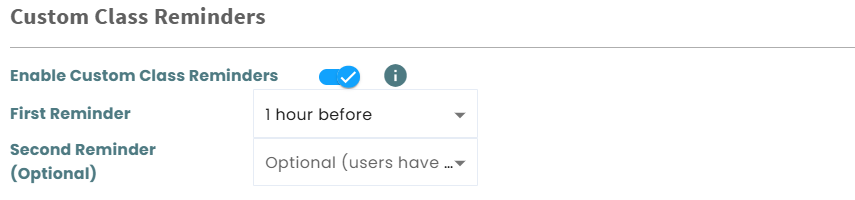
Custom Class Reminders
-
Enable custom class reminders for clients to receive before classes
Booking Time Controls
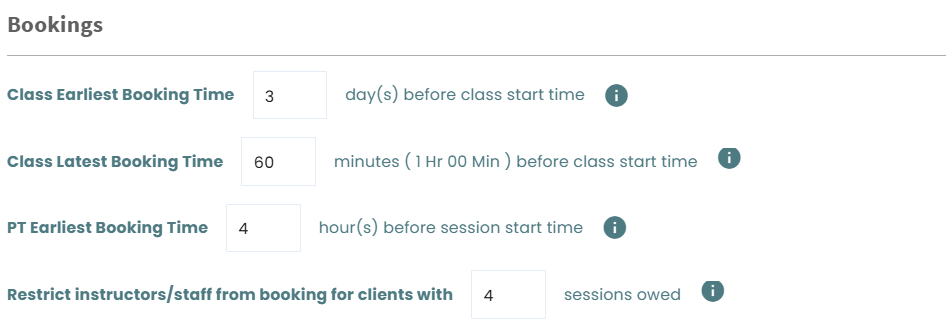
- Earliest Booking Time: Set how many days before a class clients can start booking (e.g., 2 days = clients can book 48 hours before only).
- Latest Booking Time: Set how close to class time (in minutes) a client can still book (e.g., 60 mins = booking closes 1 hour before class).
- PT Earliest Booking Time: The earliest booking time will allow you to limit how early your clients can book PT sessions. (e.g, setting it to 48 hours no one will be able to book PT sessions until 48 hours before the session start time)
Restrict Staff/Instructor Booking For Clients With Owed Sessions:
- Instructors/staff won’t be able to book clients who exceed the owed session limit.
🚫 Hide Canceled Classes from the App
- Enable “Hide Canceled” so canceled classes no longer appear online.
- Or, if deleting a schedule, ensure “Hide from Online Classes” is ticked to remove it from client view.

Package Expiry Reminder
- Send automated email reminders before memberships expire.
- Choose up to 5 alert options (e.g., 1, 2, 4, 5, 8 days before expiry).
Retention Buffer Period
- Set a Buffer Period (in days) to define how long a client remains in an "active" state between package expirations.
⭐ Ratings & Reviews
Enable the Feature:
- Go to Company Settings > Online Booking > Additional Settings > Toggle Ratings and Reviews ON.
Client Flow:
- After attending a class or PT session, clients will see a “Submit Review” button in the app.
- Clients can rate the class and instructor, and submit feedback via a form.
- You'll receive reviews via email.
Important Notes:
- Only the business can view feedback (not instructors or other clients).
- Clients have 72 hours to submit a review.
- One review per client per class.
- Review insights can be viewed in the Reports section of your portal.
🔔 Email/Notification Limits
Set limits per class schedule or PT service/instructor:
- Example: 1 notification per client every 3 days for the same class or trainer.
Customized Levels Management
- Enable Customized Levels
- Click Manage Levels to add and name your own levels (e.g., Beginner, Intermediate, Pro).
- You can Transfer Clients from one level to another (e.g., all Level 1 clients become Level 2).
⚠️ Don’t forget to Save after making any changes.