
Here’s how to create and manage a corporate client profile.
How to Add a Business Client
- Go to the Clients Module from the main menu.
- Click the ➕ Add button on the top right of the screen.
- In the options that appear (Adult / Child), click on Add Business.
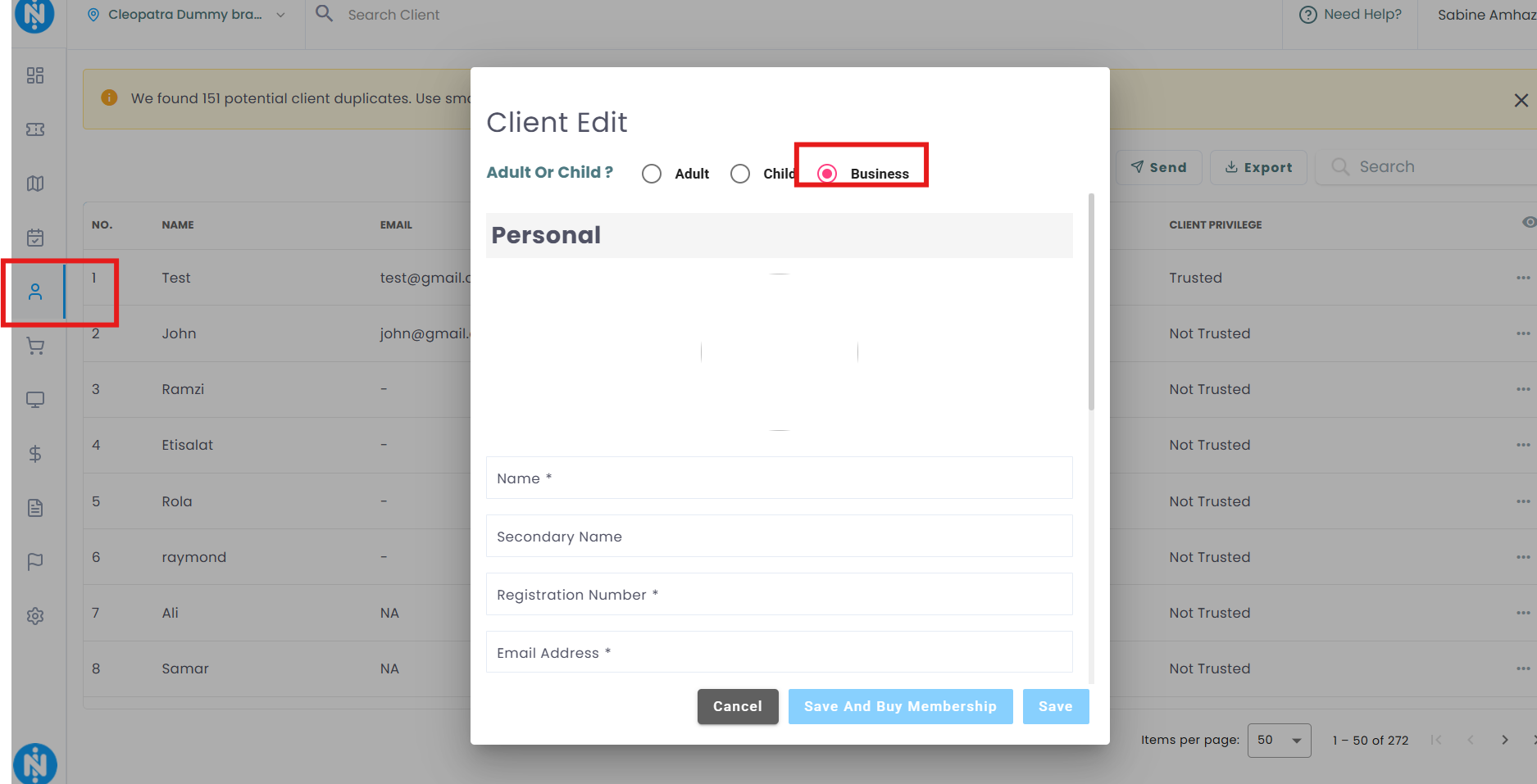
Fill in Business Information
You’ll now see a form where you can enter key details about the corporate client:
- Name – Business or company name
- Email Address (optional)
- Phone Number (optional)
➕ Additional Information (Optional)
- Additional Address – For billing or communication
- Corporate Rate – If the business has a special pricing agreement
Once all necessary details are filled in, click Save to create the corporate client profile.
How It Works After Creation
- The business is now treated just like any regular client.
- A full client profile will be created for the company.
- You can:
- Sell packages to the business
- Register them for classes or appointments
- Track payments, history, and attendance
- Sell packages to the business
✅ Why Use Corporate Client Profiles?
- Centralize group bookings and billing
- Track corporate package usage
- Apply group-specific discounts or rates
- Easily manage attendance and class registration for employees
Use this feature to offer professional, streamlined service to business clients and maximize your B2B potential!