Integrating ZKTeco Face Recognition Machines
Connect your ZKTeco face recognition machine with in2 to manage access control and attendance seamlessly.
Integration Overview
Our integration uses a local or cloud-based server to manage client access and sync real-time attendance. Here's what the system controls:
- ✅ Access based on Gender
- ✅ Access based on Package & Branch
- ✅ Access for Staff Roles with full facility clearance
- ✅ Real-time Check-In / Check-Out sync with attendance reporting
Supported Devices
- Face Recognition Model: SpeedFace V5L
- Optional Gate Model: FBL4022
Official Distributors
Lebanon
– Contact: Boudy
– 📞 +961 71 460 077
GCC (Bahrain, Kuwait, Oman, Qatar, Saudi Arabia, UAE)
– Contact in UAE: Nabil Damash (Endless Data)
– 📞 +971 58 295 9816
– 📧 Nabil.damash@edatame.com
Choosing Your Integration Type
Before getting started, here’s how we decide the best setup for your business:
🔹 BioTime Software – Ideal for 1–2 branches and fewer than 500 clients
🔹 Local Server Setup – For multi-branch setups without syncing fingerprints across locations
🔹 Cloud Server Solution – For multi-branch setups with fingerprint sync across branches
If using a local server, you'll need a PC on-site to host it.
🔐 Access Control & Membership Rules
Once integrated, access to machines is automatically managed:
- Access is based on active memberships and assigned packages in the Gym Module
- Clients are automatically added or removed from machines depending on their membership status
- Machines can restrict access based on gender
- Staff with the “Access to All Facilities” tag can bypass gender restrictions
👆 Enrolling Clients
There are two ways to enroll users in the system:
- From Client View (Recommended)
– Select the client
– Click the fingerprint icon
– Choose the machine for enrollment
– The system checks for gender permissions and existing enrollment
If the client is already enrolled on another machine, they’ll be automatically synced.
- From Machine (Fallback Method)
– Use the Import from Machine button
– Search for the user by Card ID
– Copy the name and proceed with enrollment
📌 Note: All users must have a unique Card ID (Code) in in2 — this is mandatory for ZKTeco sync.
📄 Reports & Attendance
Check-ins and check-outs are synced every 1.5 minutes with your server. You’ll be able to generate:
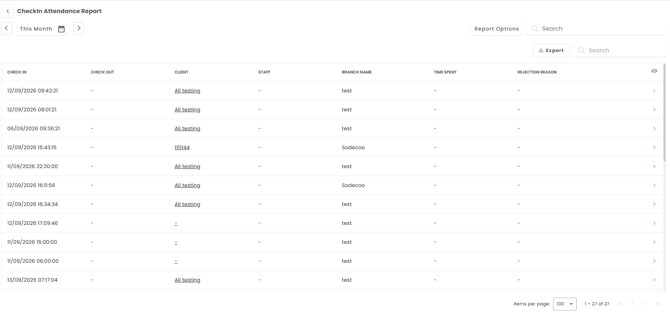
📊 Attendance Reports – See exactly when each client entered and exited, giving you a clear view of member activity.Check-In Attendance Report (Gate Access) – view members' gate check-in times directly from the In2 portal.
- Automatically enabled for eligible businesses
- Can be managed per business by a super user via the Edit Tenant window
- Access is secured so each business can only view its own authorized attendance data