
Here's a breakdown of each setting:
1. Session Owed Limit
Set a maximum number of sessions a client can owe before being restricted from booking online.
- 💡 This does not apply to staff adding clients via the portal—it only affects online bookings made by the clients themselves.

2. Waitlist Settings
Manage how waitlists function for your activities:
- ✅ Disable Waitlist – Turn off waitlists entirely.
- ✅ Disable Session Owed for Waitlist – Allow clients with owed sessions to still join the waitlist.
- ✅ Waitlist Limit – Set a default maximum number of waitlist slots for all classes.

You can override this for individual classes if needed.
⚠️ Be sure to fill out waitlist settings—if left empty, clients will see an error:
"Unable to book, there are no default settings for waitlist policy yet." - ✅ Automated Client Movement – When enabled:
- If a staff member cancels a booking, the first waitlisted client is moved into the class.
- If a client cancels from the app, the same happens.
- ✉️ Clients moved from the waitlist will be notified and receive an email confirmation.

- If a staff member cancels a booking, the first waitlisted client is moved into the class.
3. Attendance update window
Set the allowed time period before and after the class start time during which staff can update attendance.
Examples:
- If set to 15 minutes before and 30 minutes after, staff can mark attendance starting 15 minutes before the class begins and up to 30 minutes after it starts.
- Class starts at 5:00 PM → attendance can be updated from 4:45 PM until 5:30 PM.

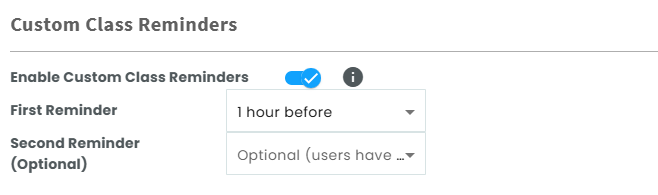
5.Custom Class Reminders
Enable this option to customize class reminder notifications. You can set up to 2 reminders to be sent at specific times before the class starts: a first reminder and a second reminder.
Examples:
- First reminder: 24 hours before the class
- Second reminder: 1 hour before the class
If a class starts at 6:00 PM, reminders can automatically be sent at 6:00 PM the previous day and 5:00 PM on the same day.
6. Booking Time Restrictions
- Class Earliest Booking Time – Limit how early clients can book (e.g., 2 days before class).
- Class Latest Booking Time – Limit how late clients can book (e.g., 60 minutes before class).
- PT latest booking time - the latest booking time will allow you to limit how late your clients can book PT sessions. For example, setting it to 48 hours no one will be able to book PT sessions after 48 hours before the session start time.
- ✅ Restrict Staff from Booking for Clients with X Owed Sessions – Prevent staff from booking clients who’ve exceeded the owed session limit.
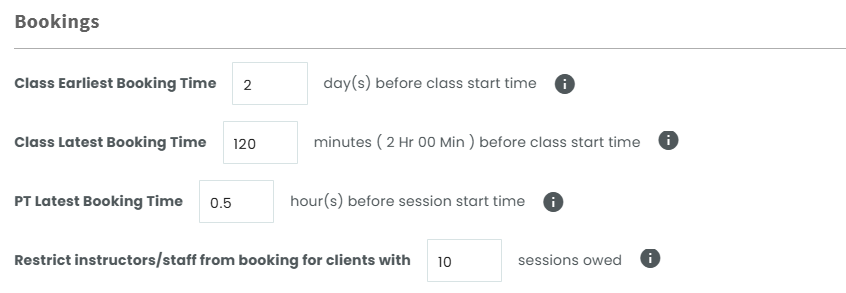
Example: If you want the PT Latest Booking to be 30 minutes for example you can add it as 0.5 hours - ✅ Hide Canceled Classes – When this is ticked, canceled classes will no longer appear on the app.

Note: You must click this each time after canceling a class to remove it from the app view.
7. Package Expiry Notifications
- Set up expiry reminder emails for memberships/packages.
- Choose to send reminders up to 5 times before the package expires (e.g., 4 days before).

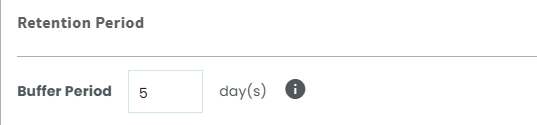
8. Retention Period (Buffer Period)
The buffer period refers to the period in between packages that define if the user’s status is still active or not.- Set a buffer (e.g., 5 days) after a package expires during which the client remains active.
- Once the buffer ends, the client will be marked inactive unless they renew or return.
9. Ratings & Reviews
- Enable Ratings & Reviews – Allow clients to rate classes and PT sessions.
- Clients can submit feedback within 72 hours of their session.
- Only the business can see reviews—not the client or instructor.
- One review per client per class.
- View detailed feedback reports under Reports.
Notifications Settings:
- Set how often clients receive rating prompts:
- For classes, it’s per schedule (each schedule is treated independently).
- For PT sessions, it's based on the service and instructor.
- Clients will receive 1 notification per session group, unless sessions are with different instructors or at different times.
- For classes, it’s per schedule (each schedule is treated independently).
- ⚠️ Clients must be marked as "Present" or "Late Arrival" to receive notifications.

10. Customized Levels
- ✅ Enable Customized Levels – Add custom levels like Beginner, Intermediate, etc.
- ✅ Limit Booking Based on Level – Only clients with the correct level can book classes that require it.

Manage Levels
- Add, edit, or delete your own custom activity levels.
- Use Transfer Levels to move all clients from one level to another (e.g., Level 1 → Level 2).
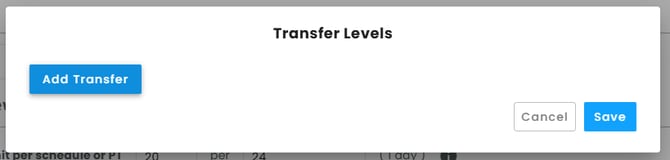
This helps automate progression based on your internal policies.
📝 Make sure to save after each update to apply your settings.